
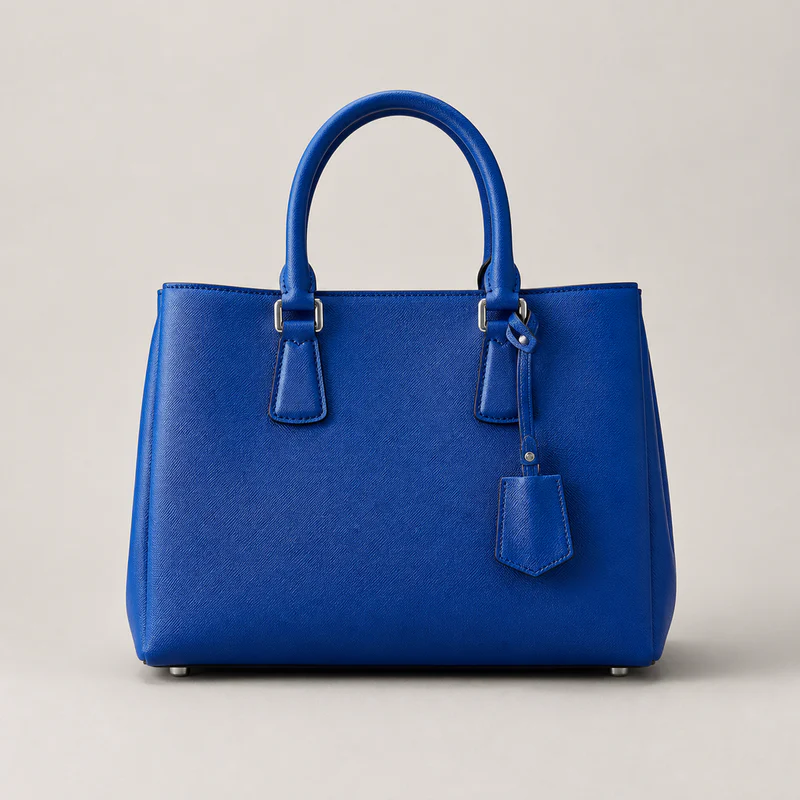
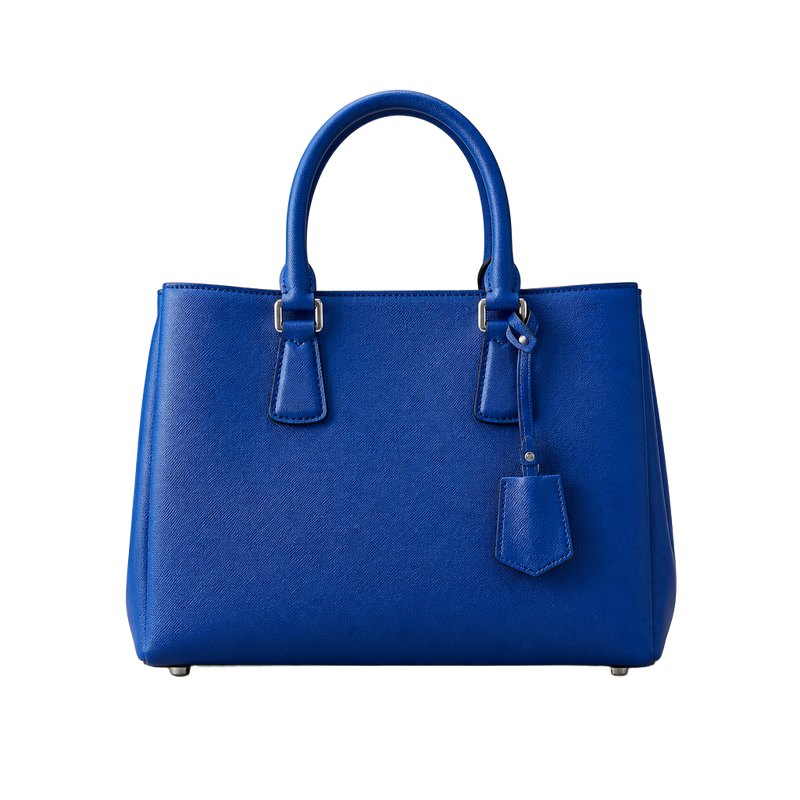
Handbag
Both handles, hardware, hanging tag, bottom feet, and the opening between the handles remain in the cutout.
Build a private browser-side queue, review each file, then submit the batch and follow every result independently.
Drop images here
JPG, PNG or WebP · up to 5 MB · 32–12,000 px · up to 40 MP
Remove every background first, then customize and download one or many completed images without using additional Credits.
Start with one shared output recipe, then adjust one image or selected groups after removal. Reuse completed results for multiple channels without running background removal again.
Choose multiple images in the upload area or drag them into it. Before processing starts, add more files by dropping them again or using Continue upload, up to the 50-image queue limit.
Remove an incorrect file with the × on its thumbnail before starting.
Choose the canvas or marketplace preset, background, and PNG or WebP format in the right panel. This becomes the default output recipe for every uploaded image after background removal.
You can still override the recipe for one image or a selected group after the batch finishes.
Select one completed image or turn on multi-select to change the size, background, or format for part of the batch. Download a version, change the recipe, save it, and download again when the same image is needed for another channel.
Changing output settings and downloading again do not use additional Credits.
Download the files you need, then choose Clear queue to close this batch and reopen uploads for the next one.
Clearing permanently removes every source preview, result, and unsaved setting from this browser session. It cannot be restored.
Lower cost does not come from simplifying the result. A specialized AI background-removal pipeline, demand-aware GPU resources, and reusable outputs reduce unnecessary computation and repeated requests.
A professional AI background-removal model is refined together with input preparation, inference settings, edge handling, and output processing so computation stays focused on separating the subject from its background.
A bounded queue allocates processing resources around actual demand. This limits idle capacity and unnecessary infrastructure cost while active jobs continue moving through the batch.
Each successful background-removal result uses 1 Credit. After the transparent master is ready, canvas size, background, format, and repeat downloads need no other inference request or additional Credits.
The AI model generates each result from that image's subject structure, material appearance, background contrast, and fine edges instead of applying one identical cutout mask across the batch.
Both handles, hardware, hanging tag, bottom feet, and the opening between the handles remain in the cutout.

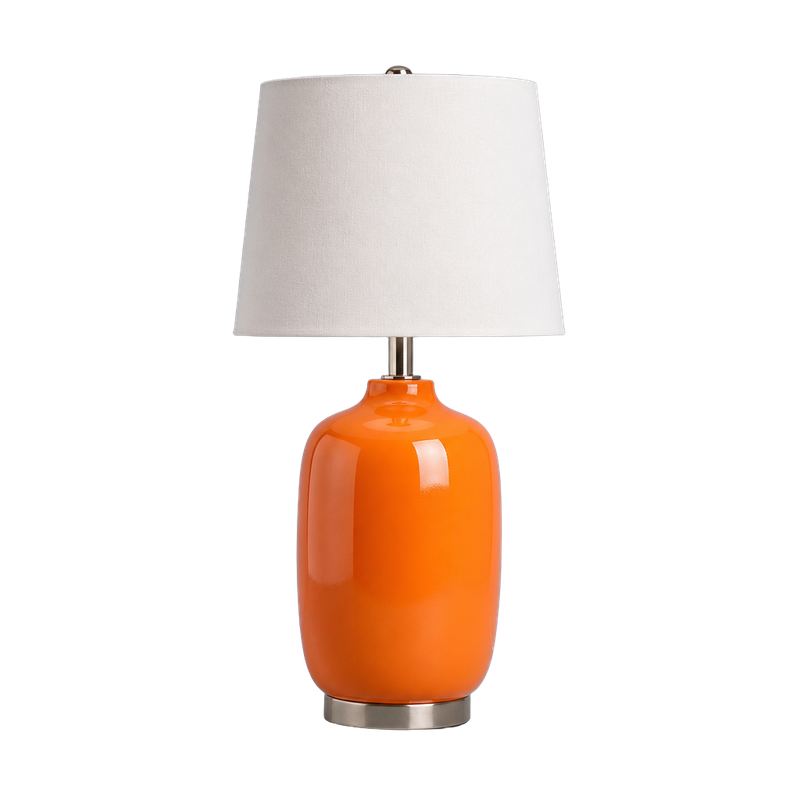
The shade, narrow neck, and glossy base remain; the power cable and floor shadow are removed with the scene.
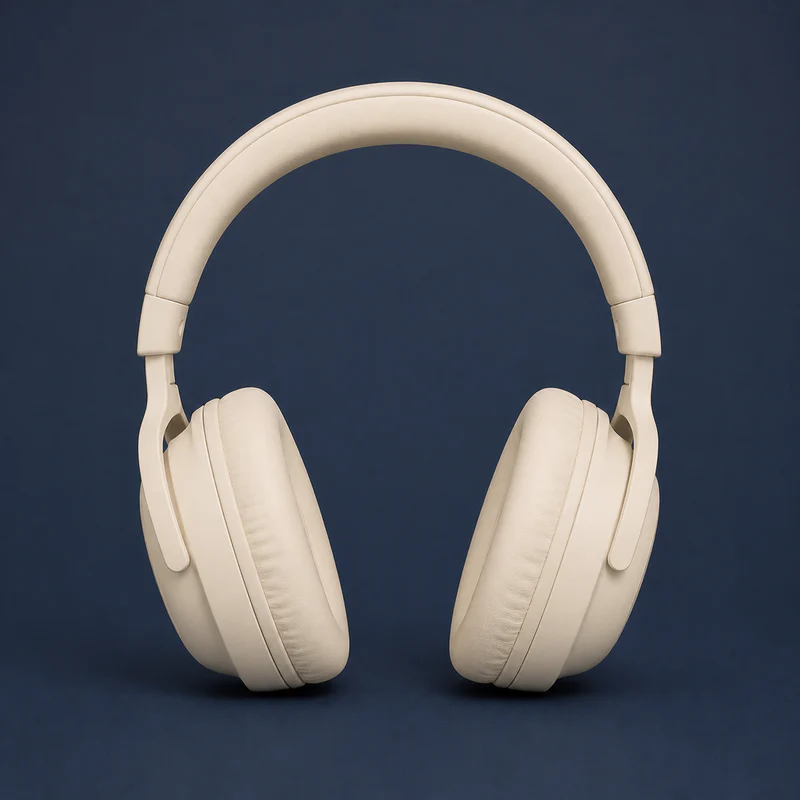

The complete headband, yokes, and ear cups remain while the center and side openings become transparent.
Use presets for Amazon, Shopify, Etsy, eBay, Google Merchant, Walmart, TikTok Shop, and WooCommerce, plus 1:1, 4:5, 3:4, 16:9, custom sizes, and PNG or WebP output.
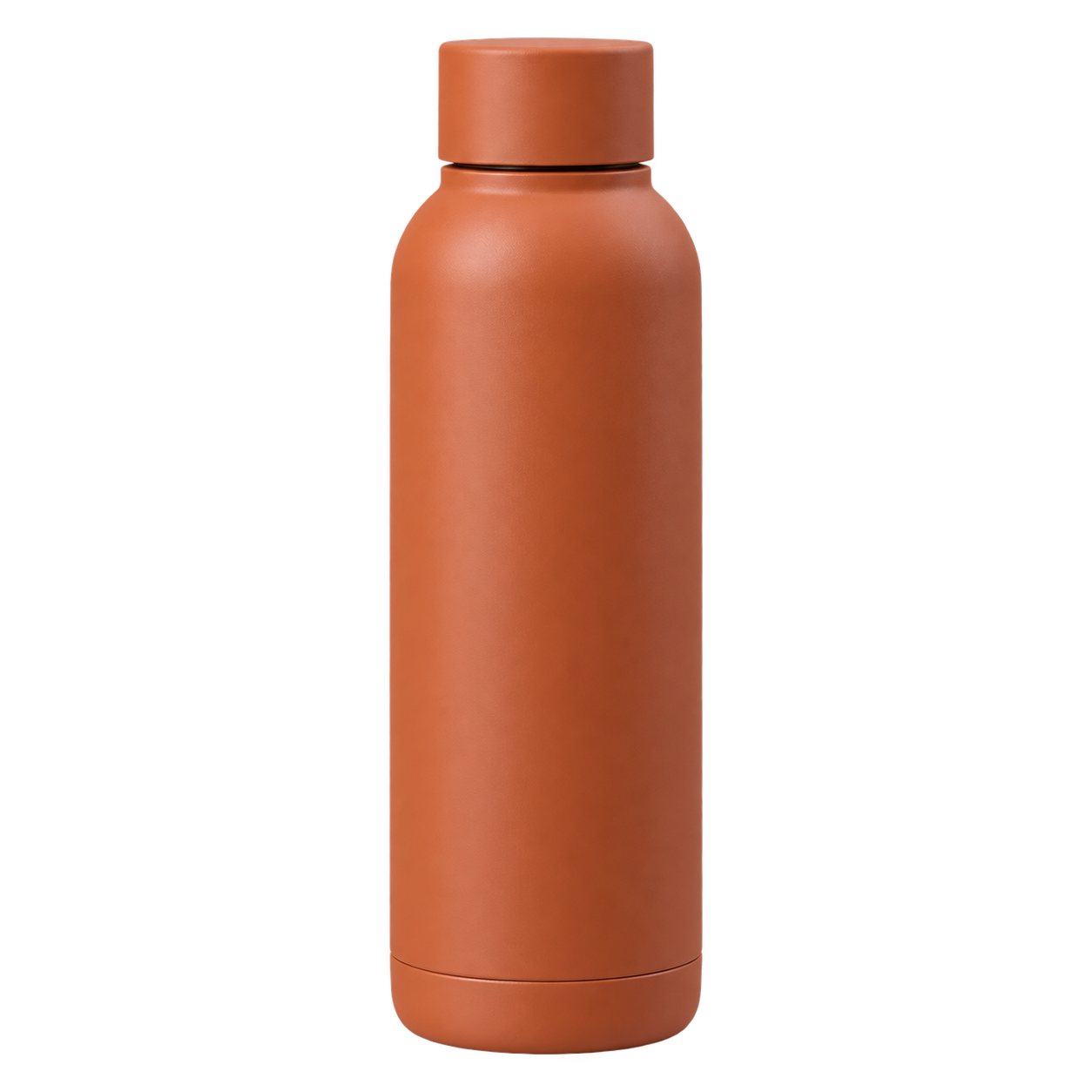
Original canvas · PNG
2000 × 2000 · WEBP
1080 × 1350 · PNG
Six practical answers about accuracy, mixed batches, failures, interrupted sessions, image retention, and choosing the right workflow.
No. Each image is analyzed separately rather than sharing one cutout mask. Batch mode changes how jobs are organized, not how the subject in each image is detected.
Yes. Portrait, landscape, and square images can share a queue, as can different product categories. Review difficult materials and unusual compositions individually before download.
No. A confirmed failure stays attached to that image while the queue continues with the remaining items. Completed results are not removed because another image failed.
The batch belongs to the current browser session. Refreshing or closing the page can interrupt the local queue and remove access to unsaved results, so keep the page open until required files are downloaded.
RemoveZero does not provide persistent image storage for this workflow. Files and previews remain tied to the active browser session; download required results before clearing the queue or leaving the page.
Use Batch when a person uploads, reviews, and downloads sets of up to 50 images. Use the API when a store, catalog, or application needs to send images automatically without operating this page.